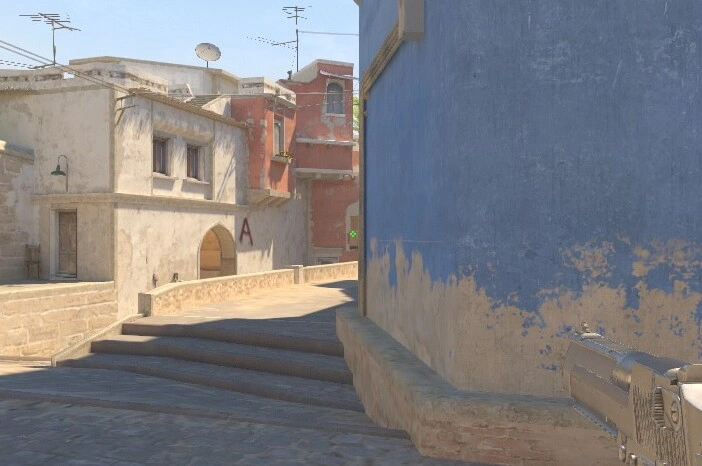
Your crosshair is one of the few settings in CS2 that affects every single duel you play. Get it wrong and you’re fighting your own setup as much as the enemy. Get it right and it disappears into muscle memory, it’s just there when you need it. This guide covers everything: what each setting actually does, which crosshair types suit which playstyles and how to import codes.
How to Access Crosshair Settings in CS2
Go to Settings → Game → Crosshair. CS2 has a built-in visual editor where you can drag sliders and preview changes in real time. You can also open the developer console with the ~ key and enter commands directly for more precise control.
To import a crosshair code, from a pro player or anywhere else, go to Settings → Game → Crosshair and click Share or Import. Paste the code and hit Import. Your crosshair updates instantly. If you don’t like it, hit Undo to go back to what you had.
Every Crosshair Setting Explained
Style
Style controls the overall behaviour of your crosshair. There are five options but in practice, two matter:
Style 4 is the standard static crosshair. It stays exactly the same size regardless of movement, shooting, or anything else. This is what virtually every pro player uses. The reason is simple: a static crosshair trains you to stop moving before you shoot, which is the correct habit. A dynamic crosshair that expands when you move is telling you information you should already know.
Style 5 is the same as Style 4 but with a centre dot added. Some players use this.
Dynamic crosshairs (Styles 1–3) expand when you move and shoot, giving visual feedback on your accuracy. They can be useful for players just learning the game, the visual cue reinforces the habit of stopping before firing. At higher levels, they create unnecessary visual noise and most players move away from them.
Size
Controls the length of the crosshair lines. Smaller is generally better for precision, it gets out of the way and forces you to aim more precisely. Pros typically run sizes between 1 and 3. Anything above 4 starts to obscure the target.
A good starting point is size 2–3 for riflers. AWPers might run slightly smaller or switch to a dot.
Thickness
Controls how thick each line is. Most pros run 0 or 0.5. Thicker lines (1+) are easier to see at a glance but cover more of the target. Thinner lines keep the centre clear and work better at all ranges.
If you’re on a lower resolution or a 60–144Hz monitor, a slightly thicker crosshair might help you keep track of it during fast movements. On 240Hz+ panels, you can comfortably run 0 thickness.
Gap
Controls the space between the crosshair lines and the centre. A negative gap closes the lines toward the centre, making the crosshair feel tighter. A positive gap pushes them further apart, which some players prefer for spray control.
Most pros run between -3 and -1. A gap of -3 gives you a tight, precise feel. 0 or above starts feeling loose.
Colour
This is more important than most players give it credit for, especially in CS2. The game is brighter and more vibrant than CS:GO, which means legacy colour choices sometimes disappear against map surfaces.
Cyan is the most reliable, strong contrast across the widest range of maps and surfaces. Green is the traditional default and still works well. White is clean and minimal but can blend into bright areas like sky boxes, snow textures, or Anubis. Yellow works but fades on sandy surfaces like Dust II or Mirage. Red is uncommon, it can blend into blood effects and darker corners.
Pick a colour and test it on the maps. The right answer is whichever colour you never lose against the backgrounds you regularly fight in.
Outline
Adds a black border around your crosshair. Useful at lower resolutions where the crosshair can disappear against bright backgrounds. Most pros disable it, at high resolutions on modern monitors it’s not needed and adds visual clutter. If you play at 4:3 stretched or a lower resolution, enabling outline at thickness 1 might be worth it.
Centre Dot
A dot in the middle of the crosshair. Some players find it helps with precise first-bullet placement. Worth testing.
T-Style
Removes the top line of the crosshair, leaving three lines in a T shape. A small number of players prefer it for cleaner target visibility at head height. Personal preference, the practical difference is minimal.
Static vs Dynamic — Which Should You Use?
Use a static crosshair. This is not really a debate at any serious level of play. A dynamic crosshair expanding on movement or shooting gives you false feedback, it makes it feel like you’re doing something with your aim when the crosshair grows, when what you should be doing is stopping and shooting. It also adds visual clutter in gunfights when you need clarity most.
The one case for dynamic: if you’re completely new to CS2, a dynamic crosshair can help you understand the relationship between movement and accuracy while you’re learning.
Crosshair Types by Playstyle
Rifler
Small, tight static crosshair. Size 1–3, thickness 0–0.5, gap -3 to -1, no dot. The goal is precision at any range from close to mid. Cyan or green for visibility.
AWPer
Many AWPers use an even smaller crosshair or a pure dot. The AWP’s scope makes the crosshair irrelevant once zoomed, so the unscoped crosshair just needs to be functional. A dot or very small static crosshair with gap -3 or lower works well.
Entry Fragger / Aggressive Player
Similar to rifler setup, but some aggressive players run a slightly larger size (3–4) to help with tracking at close range during fast-paced entries. Still static.
Beginner
Medium static or dynamic crosshair, size 3–4, thickness 0.5–1, outline enabled. Something you can actually see while you’re building muscle memory. Simplify it as your mechanics improve.
How to Import a Crosshair Code
- Copy the crosshair code
- Open CS2 and go to Settings → Game → Crosshair
- Click Share or Import
- Paste the code and click Import
Alternatively, open the developer console with ~ and paste the command string directly. This works for cl_crosshair commands pasted as a single line.
If you want to test crosshairs in a workshop environment before committing, load up crashz’ Crosshair Generator v4 on the Steam Workshop. It lets you preview and fine-tune any crosshair in a live environment with multiple background options.
Common Mistakes to Avoid
Copying a pro crosshair and immediately sticking with it. Pro crosshairs are built around specific sensitivities, resolutions, and playstyles. Use them as a starting point, adjust to what feels right on your setup, and give it time. A crosshair that feels wrong after one deathmatch session might feel completely natural after a week.
Changing your crosshair constantly. Every time you change your crosshair you reset the muscle memory you’ve been building around it. Pick something reasonable, commit to it for at least a week of real play, then evaluate.
Using a dynamic crosshair past the beginner stage. It expands when you’re moving, when your shots would miss anyway. It’s noise you don’t need.
Wrong colour for your settings. If your crosshair disappears on certain maps, switch colour or enable outline. No crosshair setting matters if you can’t see it.
The One Thing That Matters Most
Your crosshair should feel invisible until you need it. It shouldn’t be distracting, it shouldn’t cover your target, and it shouldn’t require thought. Set it up once, test it properly, and leave it alone.
The gains from optimising your crosshair are real but they’re front-loaded, you get most of the benefit in the first round of proper setup. After that, consistency beats optimisation every time.